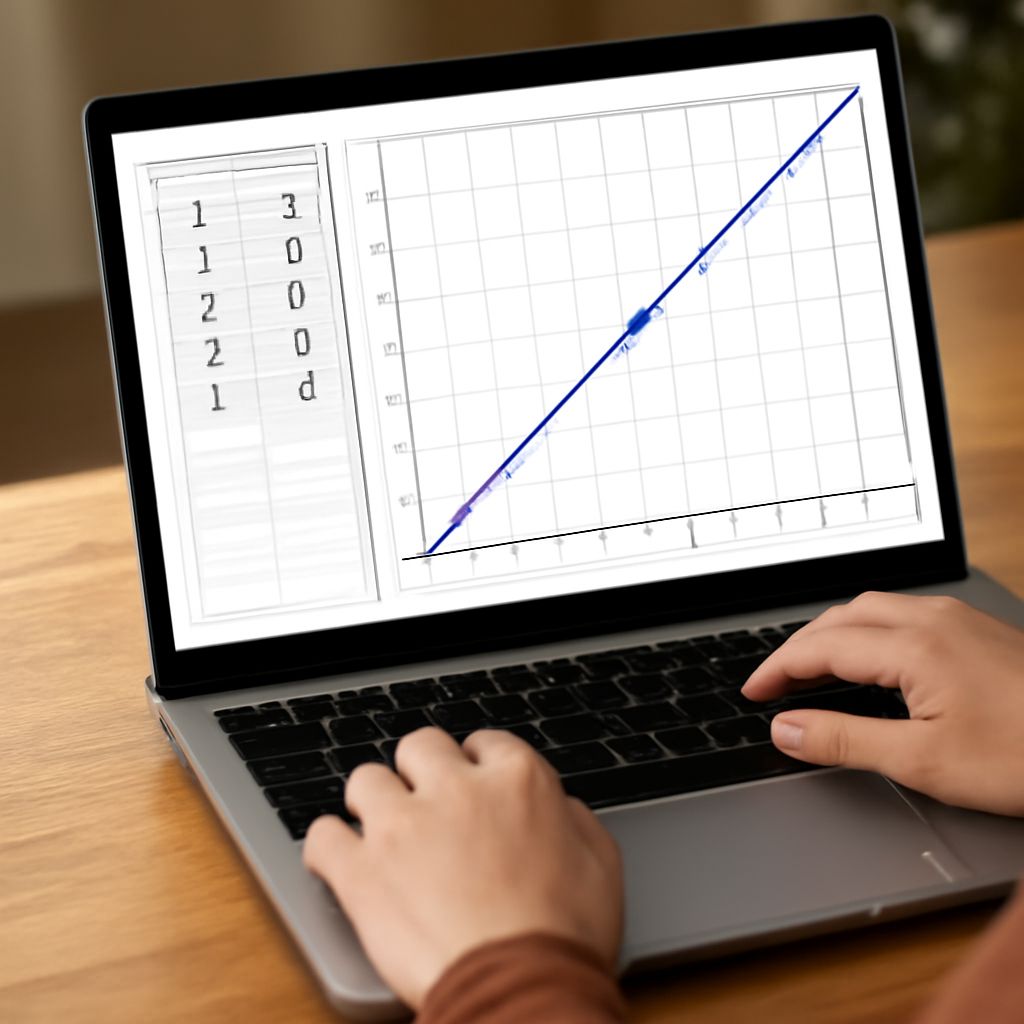
Enter a formula such as y = x^2 into a browser-based graphing app and look for the curve on the coordinate plane. Graphing in a browser turns each allowed input into a point, but the visible picture also depends on the viewing window. A quick check of the expression and scale can explain a surprising result.
Graph App Basics: Enter a Formula
A function assigns an output to each input in its domain, the set of inputs for which the rule is defined. On a standard graph, the horizontal axis represents the input, usually x, and the vertical axis represents the output, y. For y = x^2, the input 2 gives the output 4, so the point (2, 4) lies on the curve. The input -2 gives the same output, producing (-2, 4).
Open a graph app in a browser and type the expression into its input line. Some accept y = x^2; others also accept x^2 on its own. The caret ^ commonly means “raised to a power.” The plotted curve should form a U with its lowest point at the origin, (0, 0). If it does not, check the characters in the input before changing the view.
The terms function maker and graphing calculator describe related but different jobs. A maker of functions may help build a formula from settings or data, while a calculator displays the points produced by a formula. Before relying on either, check what expression it has actually generated or plotted.
Set the Domain and Window
The mathematical domain is not the same as the visible window. The domain of y = x^2 includes all real numbers, but a screen shows only a finite section. A window might display x from -5 to 5 and y from -2 to 25. Changing those limits changes the portion displayed, not the rule itself. Online graphing lets the viewer adjust those limits without changing the formula.
A graphing application may also let a user restrict the plotted domain explicitly. For example, showing y = x^2 only for -2 ≤ x ≤ 2 leaves the mathematical function unchanged but displays only that section. The syntax for such a restriction differs between applications; the tool’s help page can show how to enter it. A graphing tool online may also have separate controls for horizontal and vertical bounds, so check which setting is being changed.
Scale is the distance represented by each step on an axis. If one horizontal unit occupies much more screen space than one vertical unit, a circle can look like an oval. Use equal axis scaling when judging geometric shape, and read the tick labels before estimating a value. Zooming out can reveal a curve that seemed to be missing; zooming in can reveal detail that was compressed into a small area.
Read Points, Intersections and Shape
To read a point, first find its horizontal position, then its vertical position. The coordinates (3, 9) mean an input of 3 and an output of 9. A point where a curve meets the horizontal axis has an output of zero. For y = x^2 - 4, those intersections occur at x = -2 and x = 2.
A graphing application may show coordinates when a point is selected or offer a trace feature that follows the curve. The displayed values may be rounded, so a point that appears to have an output of zero may only be close to zero. Substituting the candidate input into the original expression provides a separate check. For x = 2, 2^2 - 4 equals 0 exactly.
Two curves can also cross each other. Their intersection represents an input for which both formulas give the same output. A graph can suggest where to look, but close curves may appear to meet at a particular pixel even when the screen cannot show the difference. Increase the scale and check the values algebraically when precision matters.
Investigate a Gap or a Missing Curve
Some gaps are properties of the function. In y = 1/x, division by zero is undefined, so there is no point at x = 0. The branches approach the vertical axis without meeting it. That is different from y = x^2, which has a value for every real input even if part of its curve lies outside the screen.
Other apparent gaps come from the display. A graphing calclator samples or draws a finite representation on a finite screen, and a very steep or narrow feature may be hard to see at one scale. A plotted line may also appear disconnected around an area where the tool has skipped points. Changing the window and checking values on either side can help distinguish a display artifact from a real break.
A browser graphing tool is useful for this comparison: plot y = 1/x, inspect values near zero on both sides, and note that the expression remains undefined at zero. For y = x^2, enter a few inputs by hand and compare the results with the displayed curve. The calculation provides a check on what the screen seems to show when graphing functions online.
Check the Input Before Trusting the Picture
Parentheses control which operation applies to which part of an expression. For example, y = (x + 1)^2 squares the entire sum, while y = x + 1^2 squares only 1. They produce different graphs. Similarly, -x^2 and (-x)^2 need not mean the same thing: the first is the negative of the square, while the second squares the negative input.
When using a graphing tool in a browser, check multiplication signs, exponents and parentheses against the intended formula. Some graphing apps recognize 2x; others may require 2*x. An online tool for graphing may also interpret functions such as sine using a chosen angle setting, so check whether it is set to degrees or radians when that distinction matters.
Online graphing makes it easy to compare several expressions, but the colors and labels need to remain clear. Plotting graphs in a browser is clearer when each curve can be identified. Enter one formula at a time, label it if the application allows, and hide extra curves when they obscure the one under examination. An app for plotting graphs can also show a table of values; compare several rows with the curve before drawing a conclusion.
The most likely first trouble is a curve that seems to be absent because the viewing window is too narrow or far from it. Check the entered formula, reset the view, and widen the axis limits until the expected points come into view.